Business Context: Help your AI assistant understand your business
Business Context is markdown text that AI assistants read through MCP to ground their answers in your organization’s structure and goals. Add context at the organization level (who you are as a company) and at the project level (how a specific project is set up).
When an AI assistant connected to your Mixpanel MCP server starts a session, it pulls the relevant business context first — so it knows your north star metric, what a “qualified user” means in your data, which project to default to, and the conventions your team uses. The result: less back-and-forth defining terms, more answers grounded in how you actually run your business.
Levels of Context
Mixpanel supports two levels of business context. AI assistants read whichever is relevant to the project they’re working in.
| Level | What to include | Who can edit |
|---|---|---|
| Organization | Company background, business model, north star metrics, customer segments, internal acronyms | Organization admins |
| Project | Events, properties, naming conventions, key dashboards, team norms, default project hints | Project owners and admins |
A typical setup uses both: org context tells the AI what business you’re in, and project context tells it how this specific project tracks data.
Edit Organization Context
Organization-level context applies to every project in your org and is shared across everyone who connects via MCP.
- Open Organization Settings, then go to Settings → Org → Business Context.
- Write your context in the markdown editor. Aim for short, structured notes — what your business does, how you measure success, the language your team uses internally.
- Click Save. The context becomes available to AI assistants on their next MCP session.
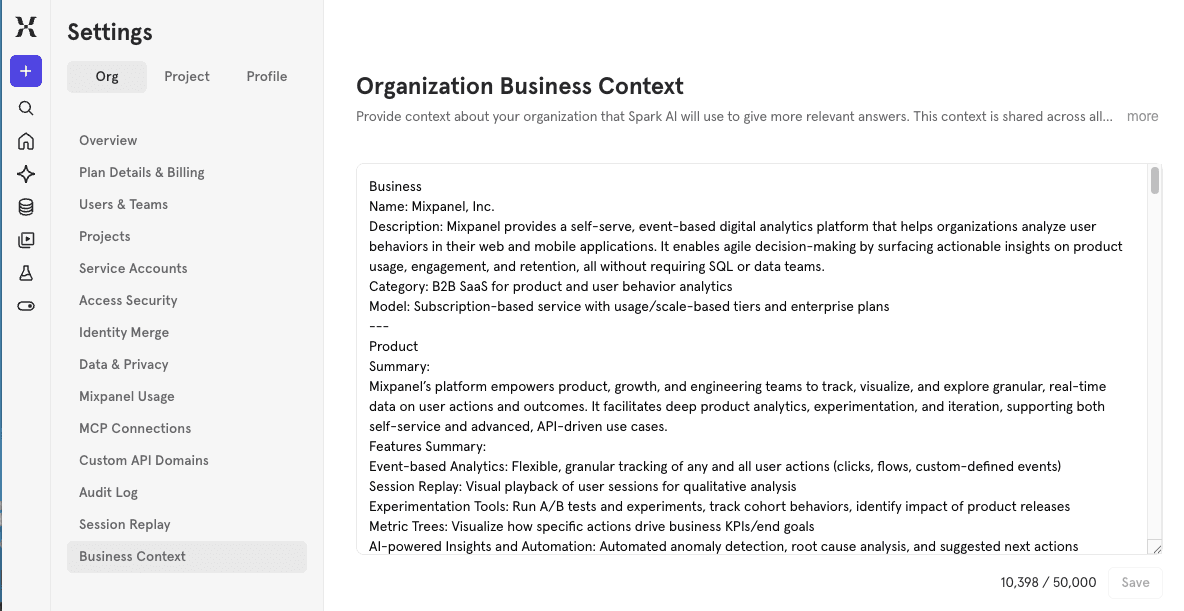
Only organization admins can edit organization-level context. Other users in your org will see the context but won’t be able to modify it.
Edit Project Context
Project-level context describes how an individual project is structured — its events, conventions, and the people working in it.
- Open the project you want to add context to.
- Go to Settings → Project → Business Context.
- Write your context in the markdown editor.
- Click Save.
Project owners and admins can edit project context. Anyone with project access can read it.
What to Include in Project Context
Good project context covers what an AI assistant would otherwise have to guess at. Useful sections include:
- Product overview — what the project tracks and the main user actions
- Event taxonomy — naming conventions, what each major event represents
- Property conventions — units, formats, what specific properties mean
- Key dashboards — where to find canonical reports for common questions
- Team norms — how you define active users, churned users, qualified leads, etc.
- Operating shortcuts — “MCP usage data lives in the Infra Metrics project”, “use the v2 cohort for marketing analyses”
Keep it focused. AI assistants pull this context on every relevant request, so longer context means slower responses and higher token cost.
Edit Context via MCP
Any AI assistant connected to your Mixpanel MCP server can read and update business context using two tools:
| Tool | Description |
|---|---|
Get-Business-Context | Returns the business context for the organization, optionally combined with the context for a specific project. |
Update-Business-Context | Replaces the business context at the organization or project level. |
Ask your AI assistant in plain language:
- “Add to project context: events prefixed with
srv_are server-side. Client-side events have no prefix.” - “Update org context to note that our north star metric is weekly active analyzers, not daily active users.”
- “What context do you have on this project? Suggest improvements based on what you’ve learned about the data so far.”
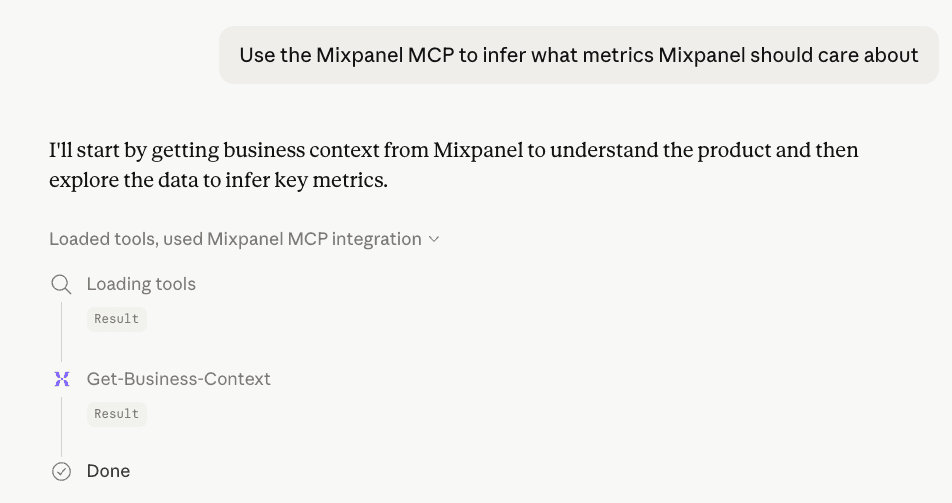
Updating context via MCP performs a full replace — the new content overwrites whatever existed before. Other people on your team may have authored the current context, so always have your AI assistant confirm what’s there before overwriting.
Update-Business-Context will fail with a permission error if your account doesn’t have edit access to the org or project you’re updating.
Limitations
- Markdown only — context must be plain markdown text. Images, structured data, and links inside the context aren’t fetched or rendered for the AI assistant.
- Full-replace updates —
Update-Business-Contextoverwrites the entire context at the level you target. There is no append or merge mode. - Edit permissions — organization context can only be edited by organization owners and admins. Project context can only be edited by project owners and admins. Anyone with project access can read both.
- Size limit — each context (organization and project) is capped at 50,000 characters.
FAQ
Who can read business context?
Anyone in your organization with access to a project can read the context for that project, and the org context that applies to it, through MCP or in Mixpanel Settings. Permissions match your existing project permissions.
Does business context get sent to my AI provider?
Yes. When your AI assistant fetches business context via MCP, that content is sent to whichever AI provider you’re using (Claude, ChatGPT, etc.) as part of the conversation. Avoid putting credentials, customer PII, or other sensitive information in your context.
Can I generate project context automatically?
Not yet from the in-product UI. For now, write context manually based on what your AI assistant most often needs to know about your project.
How do I clear context?
Either delete the text in the Settings editor and save, or ask your AI assistant to call Update-Business-Context with an empty string at the level you want to clear.
Was this page useful?