Audit Log
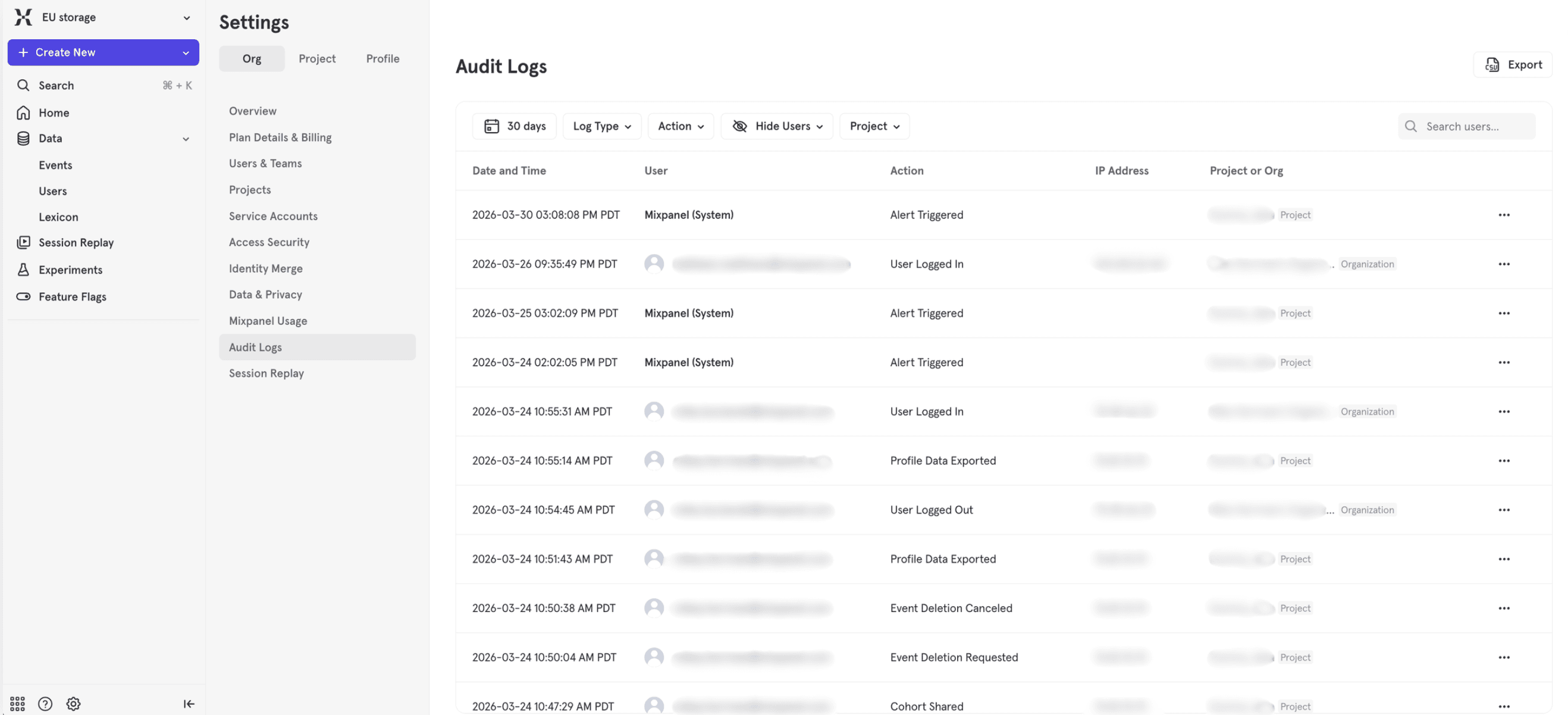
Mixpanel’s audit log tracks activity within your organization and projects, providing visibility into who made changes, when they occurred, and what was modified. The audit log helps teams maintain security, troubleshoot issues, and meet compliance requirements.
The audit log is available on all plans. Free and Growth plans retain logs for 90 days. Enterprise plans retain logs for 2 years. See our pricing page for more details.
Accessing the Audit Log
You can access the audit log at two levels:
- Organization-level logs — Found in Organization Settings. Accessible to organization admins and owners, these log all events across the organization, including user authentication, service account management, and more.
- Project-level logs — Found in Project Settings. Accessible to project admins and owners, these logs include project-specific events like report creation and data exports.
Some events appear only at the organization level. Most appear in both organization and project logs.
- Navigate to Organization Settings or Project Settings by clicking the gear icon in the bottom left navigation > Settings.
- Select Audit Log from the sidebar menu.
- View the activity log showing recent events, who performed them, and when they occurred.
Tracked Events
See Audit Log Reference for a complete list of all tracked events, including descriptions and availability dates.
Exporting the Audit Log
You can export the audit log to CSV or NDJSON (newline-delimited JSON) for further analysis or archival. The export contains the raw data for each event. CSV is convenient for spreadsheets and quick analysis. NDJSON preserves the full nested structure of each event, which suits programmatic processing or ingestion into log pipelines.
- Navigate to the audit log page in Organization Settings or Project Settings.
- Click the Export button and choose your format—CSV or NDJSON—from the dropdown to download the current view of the audit log.
- The export includes all visible events within the selected time range.
Limitations
- Retention periods vary by plan:
- Free & Growth plans: 90 days
- Enterprise plans: 2 years
- Organization-only events (service account management, login/logout, two-factor auth) are only visible in Organization Settings, not Project Settings.
FAQ
Who can access the audit log?
Only users with Admin or Owner roles in an organization or project can view the audit log for that organization or project. You can configure custom roles to include audit log access as well.
Can I filter the audit log by event type or user?
Yes, the audit log interface provides filtering options to help you find specific events or actions by particular users.
What’s the difference between the organization and project audit logs?
Most events appear in both places. The organization audit log contains additional organization-wide events like user authentication and service account creation. The project audit log is limited to project-specific events. The scope field on the audit log reference page indicates which audit log will contain the event. If there is no scope column in a table, the event appears in both the organization and project audit logs.
Was this page useful?